A phone screen is fine for one person and hopeless for almost everything else. Photos shared with family, a video shown to friends, a game played on the sofa, or a document reviewed with a colleague all work better on a bigger display. The good news is that modern phones offer several ways to appear on a television, a laptop, or a monitor, and each method suits a different moment. Picking the right one saves you the fiddling that puts people off trying again.
This guide explains the main options in plain language. It covers wireless casting, smart television features, plain cables, and mirroring to a computer, along with the strengths and limits of each, so you can match the method to the job in front of you.
Wireless Casting to a Television
Casting is the option most people try first, and for good reason. With a Chromecast, a smart television, or a streaming stick on the same wifi network as your phone, you tap one icon in an app and the video or photo appears on the big screen. The phone becomes a remote control, free for messages or browsing while the television plays on.
Casting shines for streaming films, music, and photo slideshows, because the television often pulls the stream directly and the picture stays smooth. Its weakness is live mirroring. Not every app supports casting, and games or fast scrolling can lag, since the signal travels through your network. If your wifi is weak or crowded, expect the odd stutter. For relaxed viewing on the sofa, though, nothing beats it for sheer ease. If you want step by step help with casting, mirroring, and connecting almost any phone to almost any screen, the screen mirroring guides and tutorials at Scrcpy gather the methods in one place, with fixes for the problems people hit most often.
Built In Mirroring on Smart Televisions
Many recent televisions can mirror a phone directly, with no extra gadget at all. Android phones often use a feature called Smart View, Cast, or wireless display, while iPhones use AirPlay on televisions that support it. You open the mirroring option on the phone, choose the television from the list, and the whole phone screen appears, not just one app.
Full mirroring suits showing photos, browsing together, presentations, and apps that lack a cast button. Because everything on the phone appears, remember that notifications appear too, so turn on do not disturb before a work presentation. Picture delay is usually small but noticeable, which makes this fine for slides and photos and less ideal for fast games. It also depends heavily on both devices being recent enough to speak the same language, so check your television settings menu for a mirroring or screen share option.
The Humble Cable
A cable feels old fashioned and quietly outperforms everything else. A USB C to HDMI cable or adapter, or a Lightning to HDMI adapter for older iPhones, sends the phone screen to any television or monitor with an HDMI socket. There is no network involved, no pairing, and almost no delay.
That reliability makes the cable the best choice for hotel rooms with unknown wifi, for venues where you cannot risk a failed connection, and for games where timing matters. The trade off is freedom. You are tethered to the length of the cable, and the phone battery drains unless the adapter also takes a charger. For a desk setup, where the phone sits beside a monitor all day, none of that matters, and the cable simply works every single time.
Mirroring to a Laptop or Computer
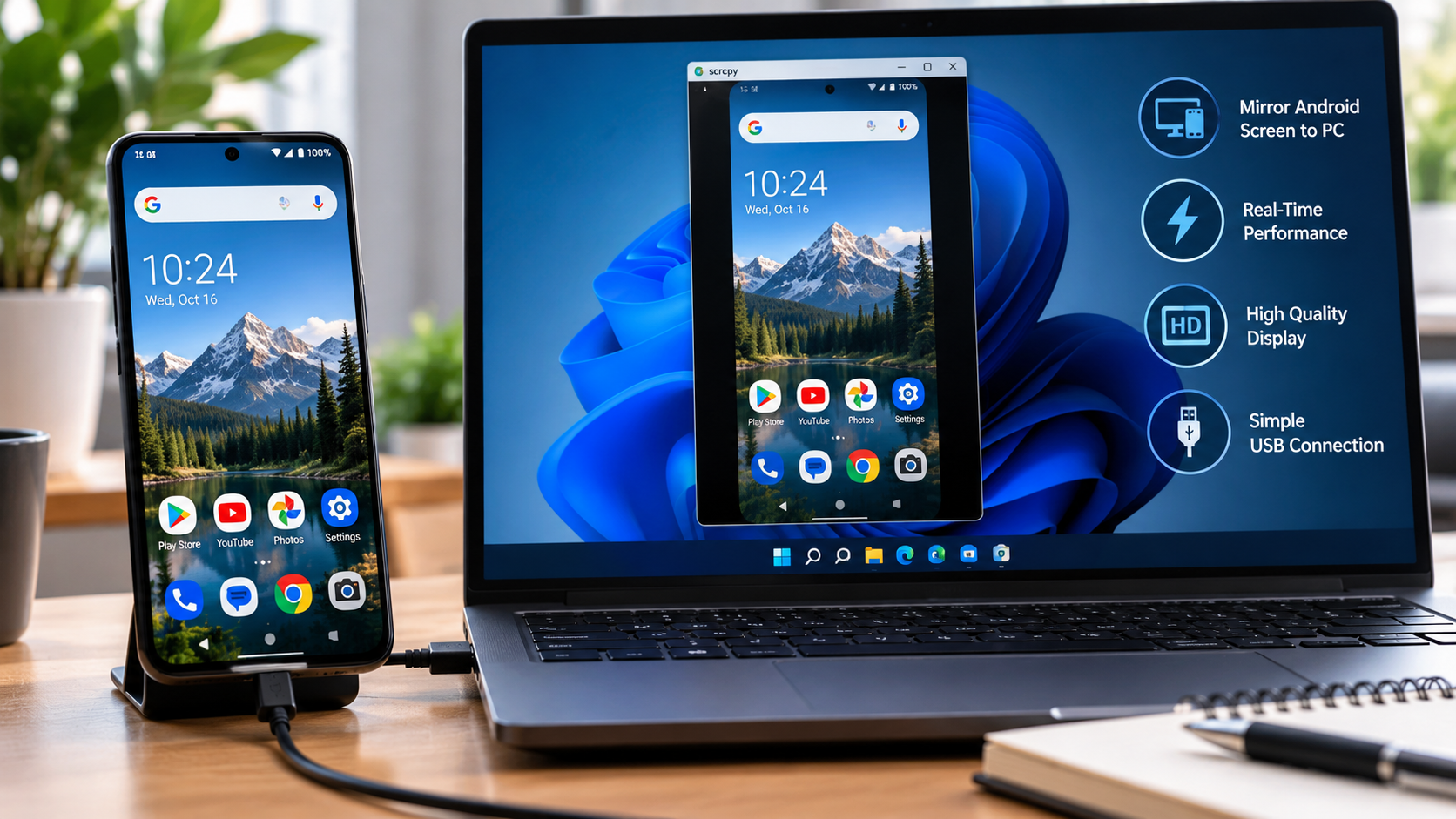
Sometimes the bigger display nearby is a laptop, and sometimes you want more than a picture. You might want to record the screen, control the phone with a mouse and keyboard, or keep the phone beside you during a video call while its camera or apps show on the computer. Software mirroring does this over a USB cable or wifi, and tools built for the job can offer very low delay and full control from the computer.
This route suits developers testing apps, teachers showing a phone to a class, support staff walking someone through settings, and anyone creating tutorials or gameplay videos. It takes a few minutes of setup the first time, including installing software on the computer and allowing the phone to connect. After that, connecting again is quick. Wired connections give the smoothest picture, while wifi connections give you freedom to move around the room.
Which Method Should You Choose
Match the method to the moment. For films and photos with family, cast to the television and keep your phone free. For showing the whole phone, use the mirroring feature built into your television. For reliability, travel, and gaming, pack a cable. For work, teaching, and recording, mirror to a computer where you gain control as well as size.
Whichever you pick, two small habits help every time. Put both devices on the same network before you start, and silence notifications before anything important. Do that, and showing your phone on a bigger display becomes a ten second job instead of a ten minute puzzle.