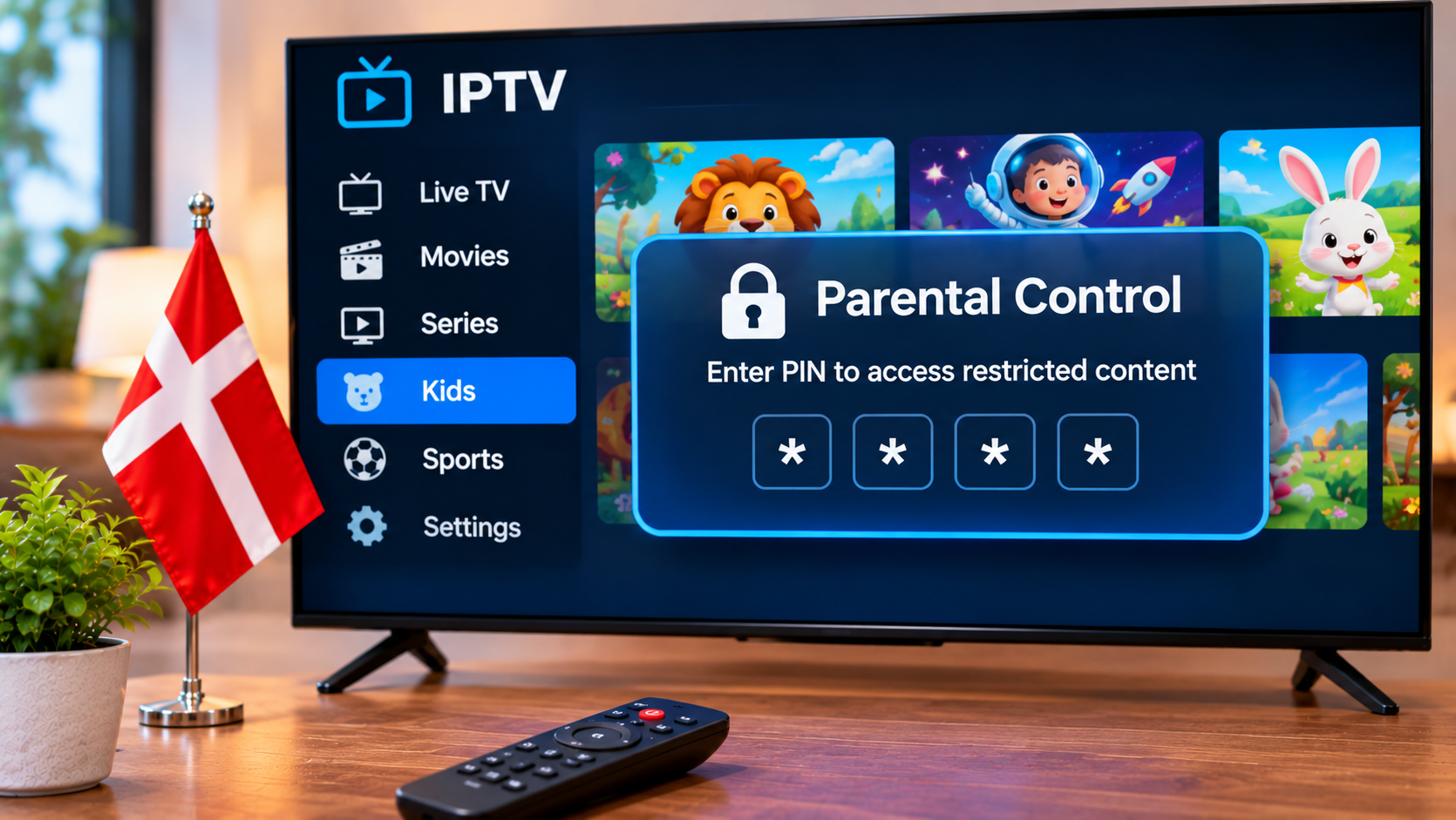
Internet television can give households access to a broad range of live channels, films, series, sports, and on-demand entertainment. That flexibility can be useful, but families may also want greater control over what younger viewers can open.
For households in Denmark, parental controls can help create a more manageable IPTV setup. Depending on the IPTV player and device, parents may be able to protect certain categories with a PIN, restrict application access, create child-friendly favourites, or use controls built into the television or streaming device.
Understanding the different levels of parental control makes it easier to build a setup that suits the whole household.
What Are IPTV Parental Controls?
Parental controls are settings designed to limit access to particular content, applications, or device functions.
In an IPTV setup, these controls may be available through several different places:
The IPTV player
Smart TV settings
Android TV or Google TV
Fire TV
Apple TV
Smartphones and tablets
The household router
Individual user profiles
The available options depend on the device and application being used.
Not every IPTV player provides the same controls, so families should check the features of their preferred player before relying on it.
Why Parental Controls Can Be Useful
A large IPTV interface may contain many different categories.
Children may only need access to a small selection of age-appropriate channels or programmes.
Parental controls can help adults:
Restrict unsuitable categories
Protect settings with a PIN
Prevent accidental changes
Reduce access to mature content
Create simpler channel lists
Limit application purchases
Manage screen time at device level
The goal is not necessarily to block everything. A well-organised setup can simply make appropriate content easier to find while keeping other areas protected.
Start With the IPTV Player
The first place to check is the IPTV application itself.
Open the settings menu and look for options such as:
Parental control
PIN protection
Locked categories
Restricted channels
Adult content
Profiles
The exact wording varies between applications.
Set a Strong PIN
If the player supports PIN protection, choose a code that children cannot easily guess.
Avoid obvious combinations such as:
0000
1111
1234
Birth years
Do not leave the PIN written next to the television or stored somewhere obvious.
Lock Specific Categories
Some IPTV players allow entire categories to be protected.
This can be more practical than locking individual channels one at a time.
For example, a household may want children to have access to:
Children's channels
Educational content
Family films
Selected Danish television
while protecting other categories behind a PIN.
The exact options depend on the IPTV application.
Create a Child-Friendly Favourites List
Favourites can be useful even when an IPTV player has limited parental controls.
Instead of allowing children to browse the entire channel list, parents can create a smaller favourites section containing approved content.
This may include:
Children's television
Educational programming
Family entertainment
Selected films
Suitable international channels
A short favourites list also makes the interface easier for younger viewers to navigate.
Hide Unused Categories
Some IPTV players allow users to hide channel groups.
This can make the interface cleaner and reduce accidental access to categories that are not needed.
For example, a family might hide:
Unused language groups
Duplicate channels
Mature categories
Categories nobody watches
Hiding content is not always the same as securely locking it, so use PIN protection when stronger restrictions are required.
Use Device-Level Parental Controls
The IPTV player is only one part of the setup.
Smart TVs and streaming devices may provide their own parental controls.
These can be especially useful because they work at the device level rather than only inside one IPTV application.
Parental Controls on Smart TVs
Many modern Smart TVs provide options for restricting applications or television functions.
Depending on the television, users may be able to:
Lock applications
Restrict purchases
Set a device PIN
Control app installation
Limit particular television features
The exact process differs between Samsung, LG, Android-based televisions, and other platforms.
Check the television's official settings or support documentation for the current instructions.
Android TV and Google TV Controls
Android TV and Google TV devices may provide family or profile features depending on the device and software version.
These can help separate children's viewing from adult accounts.
Useful options may include:
Child profiles
App restrictions
Screen-time controls
Purchase approval
Application installation controls
A separate child profile can provide a cleaner environment than sharing the main account.
Fire TV Parental Controls
Fire TV devices can include system-level parental settings.
Depending on the device configuration, these may allow users to protect purchases, applications, or certain functions with a PIN.
This provides an additional layer of protection beyond the IPTV player's own settings.
If the IPTV application includes separate parental controls, using both levels may provide more flexibility.
Apple TV, iPhone, and iPad
Apple devices provide their own restrictions and family-management tools.
These can help parents manage:
App installation
Purchases
Content access
Screen time
Account changes
An IPTV player's internal controls can be used alongside device-level restrictions where appropriate.
This can be particularly useful when the same iPad or Apple TV is shared by several members of the household.
Check the IPTV Setup Before Subscribing
Families should consider parental-control requirements before choosing a long-term IPTV setup.
The important questions include:
Which device will children use?
Does the IPTV player support PIN protection?
Can categories be hidden?
Can favourites be created?
Does the streaming device support child profiles?
Can application purchases be restricted?
Viewers comparing television and streaming options for the Danish market can include DANMARK IPTV as part of their research when considering which IPTV arrangement best matches their devices and household viewing needs.
Checking these points before completing the setup can reduce the need to change applications later.
Keep Adult Settings Separate
If an IPTV player provides profiles, consider creating separate viewing environments for adults and children.
This can make the interface easier to manage.
An adult profile may contain:
Full channel access
Sports
Films
Series
International television
while a child's environment can focus on approved content.
Even when individual profiles are unavailable, separate favourites lists or restricted categories can provide a similar result.
Protect Application Settings
Parental controls are less useful if children can simply open the settings menu and disable them.
Where possible, protect important settings with a PIN.
This may include:
Parental controls
Playlist settings
Account management
Hidden categories
Application preferences
It is also sensible to prevent children from deleting or reinstalling the application without permission.
Prevent Accidental Purchases
Streaming devices can sometimes be connected to payment methods.
Children using the remote may accidentally purchase applications, rentals, or other digital content.
Device-level purchase protection can reduce this risk.
Consider enabling:
Purchase PINs
Password confirmation
Family approval
Restricted app installation
These controls are separate from the IPTV service itself but are important in a shared household setup.
Think About Screen Time
Content restrictions are only one part of family streaming.
Parents may also want to manage how long children spend watching television.
Some devices include built-in screen-time features, while others may require household rules or router-based schedules.
A simple viewing routine can also help.
For example, families may decide that television is available:
After homework
During specific evening hours
For limited weekend periods
In shared rooms rather than bedrooms
The appropriate approach depends on the household.
Keep the Main Television in a Shared Space
For younger viewers, placing the main streaming device in a shared family area can make supervision easier.
A television in the living room is easier to monitor than a streaming box in a private bedroom.
This does not replace technical controls, but it can complement them.
Parental controls work best when they are part of a broader household approach to media use.
Review Favourites Regularly
Children's interests change over time.
The favourites list that works today may no longer be useful several months later.
Periodically review:
Children's channels
Family films
Educational content
Recently added categories
Content no longer watched
Keeping the list organised can prevent the child-friendly section from becoming as cluttered as the full IPTV interface.
Check New Channels After Playlist Updates
IPTV playlists may change.
New categories or channels can appear after a refresh.
If parental restrictions are important, review the channel list after significant updates.
A newly added category may not automatically inherit the same restrictions as an existing one.
Check:
Hidden groups
PIN-protected categories
Favourites
New channel groups
This only takes a few minutes and can help maintain the intended setup.
Do Not Rely Only on Channel Names
A channel name alone may not always provide enough information to determine whether content is suitable for children.
Programme schedules can change throughout the day.
A channel that shows family programmes in the afternoon may show different content later.
An electronic programme guide can help parents review upcoming programmes before viewing.
Use the EPG as an Additional Tool
An electronic programme guide, or EPG, can provide information such as:
Programme titles
Start times
Upcoming shows
Programme descriptions
When available, this information can help adults understand what will be shown without opening every channel.
EPG information should be treated as a navigation aid rather than a complete parental-control system.
Search Can Make Children's Content Easier to Find
Instead of allowing children to scroll through the full channel list, parents can use the search feature to locate specific programmes or categories.
Once suitable content has been identified, it can be added to favourites.
This creates a simpler viewing experience.
Search is particularly useful when the IPTV interface contains channels from several countries or languages.
Protect IPTV Login Information
Account credentials should not be visible to children or other unauthorised users.
Keep information such as:
Username
Password
M3U playlist URL
Server address
Portal information
private.
An M3U URL may contain account information within the address itself.
Do not post these details publicly or leave them visible in screenshots.
Be Careful When Sharing Screenshots
If technical support is required, screenshots can be useful.
Before sending one, check whether it displays:
Username
Password
Server URL
Playlist address
Device identifiers
Hide or crop sensitive information first.
This is good practice for any household account, not just IPTV.
Use Trusted Applications
Parental controls are only useful when the underlying application is trustworthy.
Use recognised app stores or established developer sources when installing IPTV players.
Avoid unknown applications that request unnecessary permissions or promise unrestricted access to paid content.
A reliable application should have a clear purpose and should not require unrelated personal information.
Keep Apps and Devices Updated
Software updates can improve security and compatibility.
Periodically check for updates to:
IPTV player
Smart TV software
Streaming device
Router firmware
Mobile operating system
Updates may also improve parental-control functions or fix settings that were not working correctly.
Secure the Home Wi-Fi Network
Streaming devices depend on the household internet connection.
Use a secure Wi-Fi password and avoid sharing the router administrator password unnecessarily.
Parents may also want to review whether the router provides features such as:
Device schedules
Internet pause
Guest networks
Access controls
Router features vary considerably between models.
Child Profiles vs IPTV Profiles
A child profile provided by the streaming device is not necessarily the same as a profile inside an IPTV application.
The device profile may control which apps can be opened.
The IPTV profile may control which channels or categories are visible.
Using both can provide different layers of control.
For example:
The device profile limits access to approved applications.
The IPTV application limits access to approved categories.
A PIN protects settings from being changed.
This layered approach can be easier to manage than relying on a single setting.
What If the IPTV Player Has No Parental Controls?
If the player does not provide useful parental controls, there are several alternatives.
Parents can:
Use device-level restrictions
Create a limited favourites list
Hide unnecessary categories
Use a different compatible IPTV player
Restrict access to the application itself
Keep viewing on a shared television
Changing the IPTV service may not be necessary if another compatible player provides better household controls.
Test the Restrictions Yourself
After setting up parental controls, test them from the perspective of the child.
Try to:
Open a restricted category
Enter settings
Install another application
Make a purchase
Disable restrictions
If access is possible without the PIN or password, review the configuration.
Testing the setup is one of the easiest ways to discover missing restrictions.
Do Not Forget Other Devices
A household may have parental controls on the main television but no restrictions on a tablet or second streaming device.
Review every device where IPTV credentials are stored.
These may include:
Smart TVs
Android boxes
Fire TV devices
Apple TV
Phones
Tablets
Computers
Restrictions should match the way each device is actually used.
Consider Content Licensing
Parental controls manage access inside the household. They do not determine whether the underlying television content is legally distributed.
IPTV is simply a technology for delivering television through an internet connection.
The legal status of a specific service depends on licensing and distribution rights.
Viewers in Denmark should research providers carefully and consult current Danish regulations or reliable legal guidance if they are uncertain about a particular service.
Final Thoughts
Parental controls can make IPTV easier to manage in a family household.
The most effective setup usually combines several tools rather than relying on one setting. IPTV player PIN protection, favourites, hidden categories, device-level child profiles, purchase restrictions, and secure account credentials can all play different roles.
Start by identifying the devices children actually use. Then check the parental-control features available on both the IPTV player and the device itself.
Review the setup periodically, especially after application updates or playlist changes.
With a well-organised channel list and appropriate restrictions, families in Denmark can create an IPTV environment that is simpler for children to navigate while giving adults greater control over household streaming.